

JBL SIGNATURE SOUND
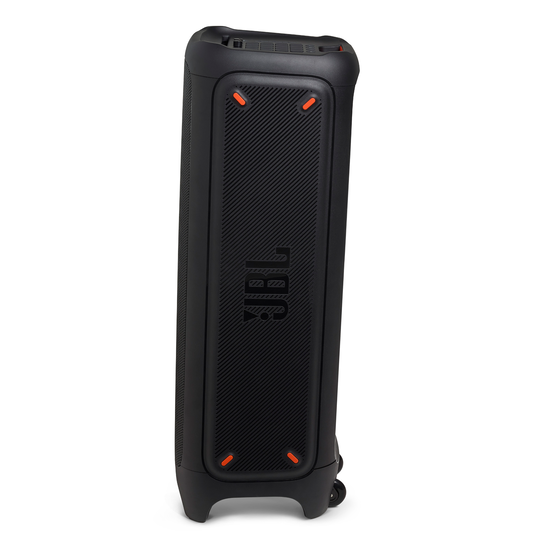
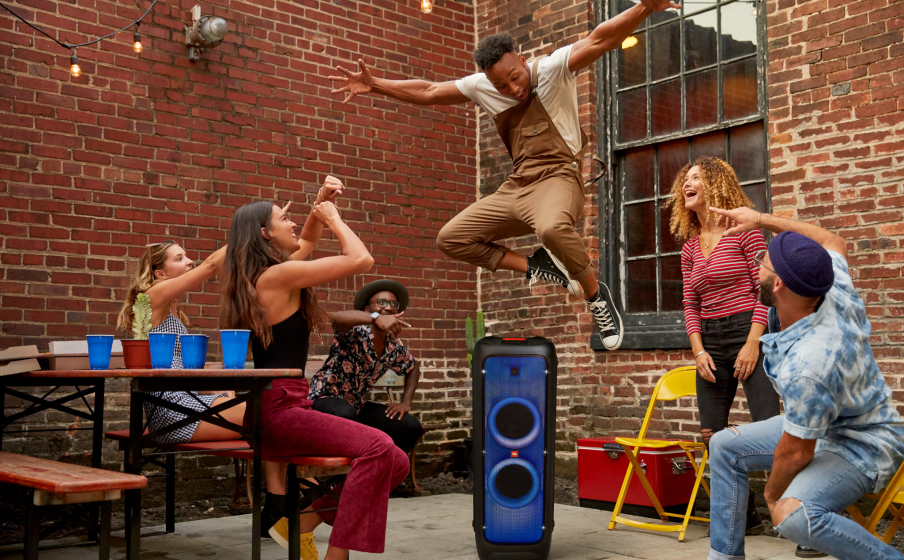
JBL offers unprecedented performance and authentic audio experiences you will remember for your party!

LIGHT SHOWS
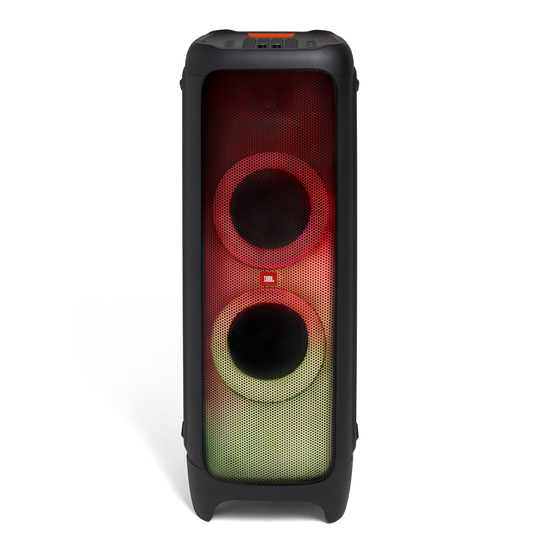
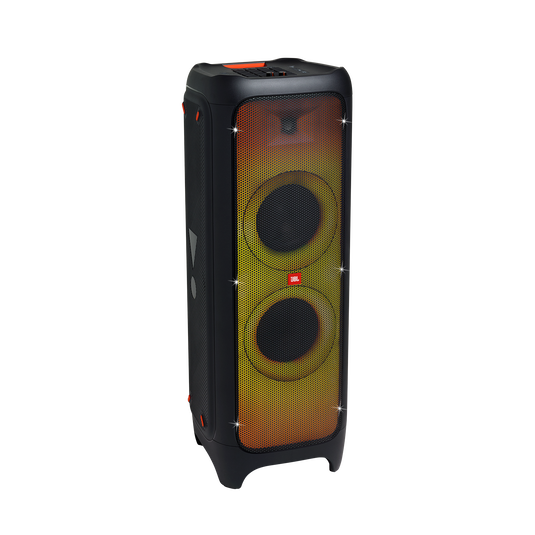
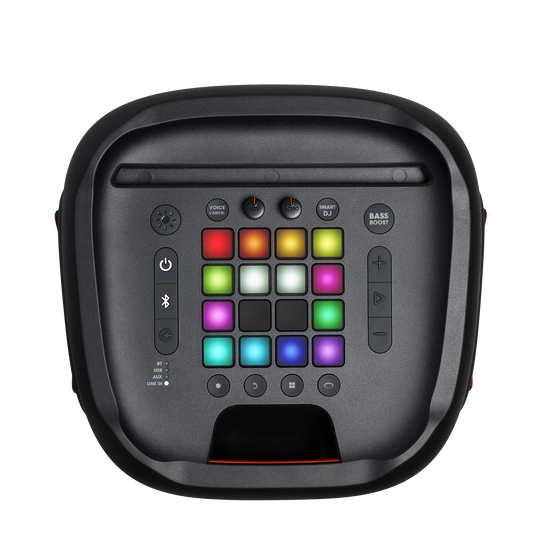
The full panel lighting effect create a captivating light show to astound your crowd with a lasting visual experience.
FEATURES

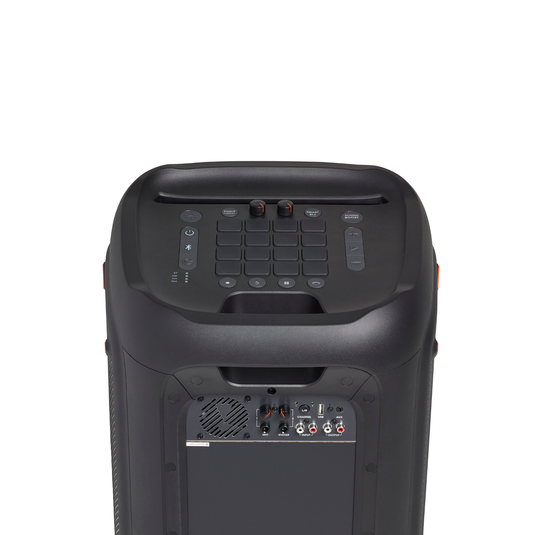
DJ Pad
This DJ Pad allows you to play drums, guitar and piano, record and loop on the fly!

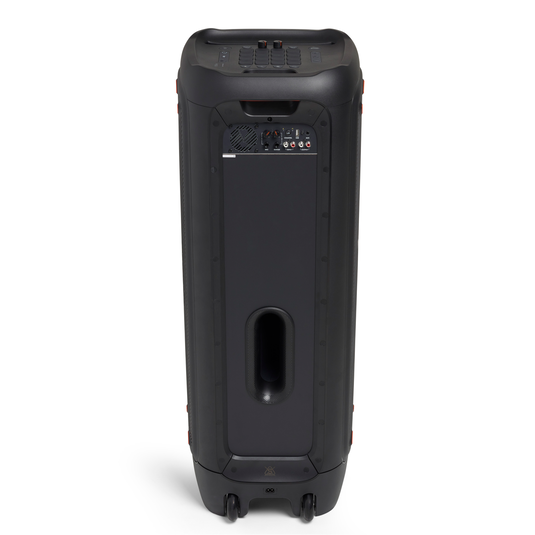
Mic and guitar inputs
Plug in your mic or guitar and take the stage.

USB playback
Pre-program your party or event with your favorite playlist from a USB thumb drive!



SPECS & DOWNLOADS
The Ultimate Party Machine!
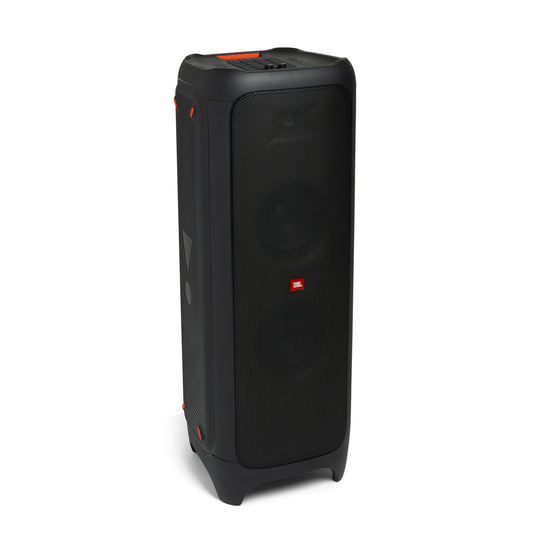
The JBL PartyBox 1000 is a powerful party speaker with JBL sound quality and exciting full panel light show. Just plug in your Mic or Guitar and take the stage or stream your playlist via Bluetooth or from a USB stick. The LED lit DJ and Party Band bring concert to your party! Connect two PartyBox speakers wirelessly with the TWS feature or wired from one RCA output to another RCA input. Let’s get the party started!
It is very simple to connect to your Car with the JBL Partybox 200 or 300. Use the included cable that connects through the cigarette connector in your Car and power on the Partybox! Please note that the 12V connection does not charge the battery in the Partybox 300 – it will only power the Partybox when in use. To charge the battery, it will have to be plugged into AC power ( 110 – 230V )
DOES MY SPEAKER HAVE SPEAKERPHONE/VOICE ASSISTANT FUNCTIONALITY?
This product does not feature speakerphone or voice assistant functionality as it does not have a microphone.
DEMO MODE
- Press the Play and Boost button at the same time for 5 seconds.
- Depending on what state your JBL Partybox is in, either you enter Demo mode or disabling it.
- NOTE: In Demo mode, you cannot use the JBL Partybox as most features and buttons are not working.
RESETTING THE PARTYBOX TO FACTORY SETTINGS
- Press and hold “Play/Pause” and “Volume +” down for > 10 seconds.
- The JBL Partybox will power off and back on and is now reset.
BLUETOOTH PAIRING
- Press the button on the Partybox to start the pairing process.
- Grab your device.
- Go to settings –> Bluetooth –> Enable Bluetooth –>
- Find the Partybox speaker you want to establish a Bluetooth connection to.
- You now have a successful connection and can stream your favorite music.
- NOTE: It is only possible to have two devices connected at the same time and if you want to listen through the second Bluetooth device then stop the current one from playing and use the second device.
- To stop Bluetooth broadcasting then insert a USB device.
HOW TO FIND THE SOFTWARE VERSION
FINDING THE SOFTWARE VERSION
- Press and hold the ‘Volume-‘ and ‘Bass Boost’ buttons for 5 seconds.
- A voice will start prompting numbers which indicates the current software version.
USB STICK
- Get an empty stick with speed of 2.0.
- Make sure it is formatted with FAT16 or FAT32.
- Your Music files can only be: (32-320kbit/s), (32-320kbit/s) and (44.1K/48K/192K).
- The Partybox supports up to 8 subfolders.
- It will be played in alphabetic sequence with main folders first then subfolders.
- To skip songs forward, double press the Play/Pause button. To skip back, triple press the Play/Pause button.
- HOW TO RECORD SOUND EFFECTS.
Please go to this Youtube address to watch an instruction video about how to record sound effects on JBL PartyBox 1000: https://www.youtube.com/watch?v=vcuIPVfnC8Q&list=PLPlXZNivfAs4mndPKnjUkB2ZggcA4cZvc&index=6&t=0s
IS MY PARTYBOX SUPPORTED BY THE JBL PARTYBOX APP?
This model is not supported by the JBL Partybox App.
PARTYBOX: UNEVEN VOLUME & SOUND WITH INSTRUMENTS & MICROPHONES
If you are experiencing sound fading in and out (pumping) or volume levels changing while playing your instrument, this is known as limiting. The sound being sent into the PARTYBOX may be too loud which will cause the limiter in the speaker to kick in. This can cause the volume levels to dip. This is done to protect the speaker from playing louder than it’s rated output, and it likely means that the instrument input level on the PARTYBOX is set too high. Please perform these steps to calibrate your input level and to prevent pumping:
- While music is playing via BT or line input, set the volume on the PARTYBOX to a comfortable listening level.
- Stop playing the music.
- Turn the instrument/guitar input volume on the PARTYBOX all the way down.
- Connect the instrument to the instrument/guitar input on the PARTYBOX.
- Set the volume on your instrument to max.
- Start playing the instrument and begin turning the instrument/guitar volume on the PARTYBOX up. The instrument should sound perfectly normal without any pumping or swelling. Continue to turn up the volume until you start to notice pumping or swelling. When you hear this, turn the volume back down a little bit until the pumping completely stops. You have now calibrated the input level for that instrument. During this step, as you are turning up, if it gets too loud, turn down the main volume on the PARTYBOX to a comfortable level, and then continue.
You should now use the main volume on the PARTYBOX to set the loudest volume for your instrument and can use the volume control on your instrument to adjust the level up or down.
NOTE: Whenever connecting a different instrument, you will likely have to repeat this process as all instruments (guitar pickups) have slightly different output levels. This is how you can ensure maximum performance out of your PARTYBOX.




Reviews
There are no reviews yet.